Using the admin
Media library
Folders, tags, focal points, image formats and access.
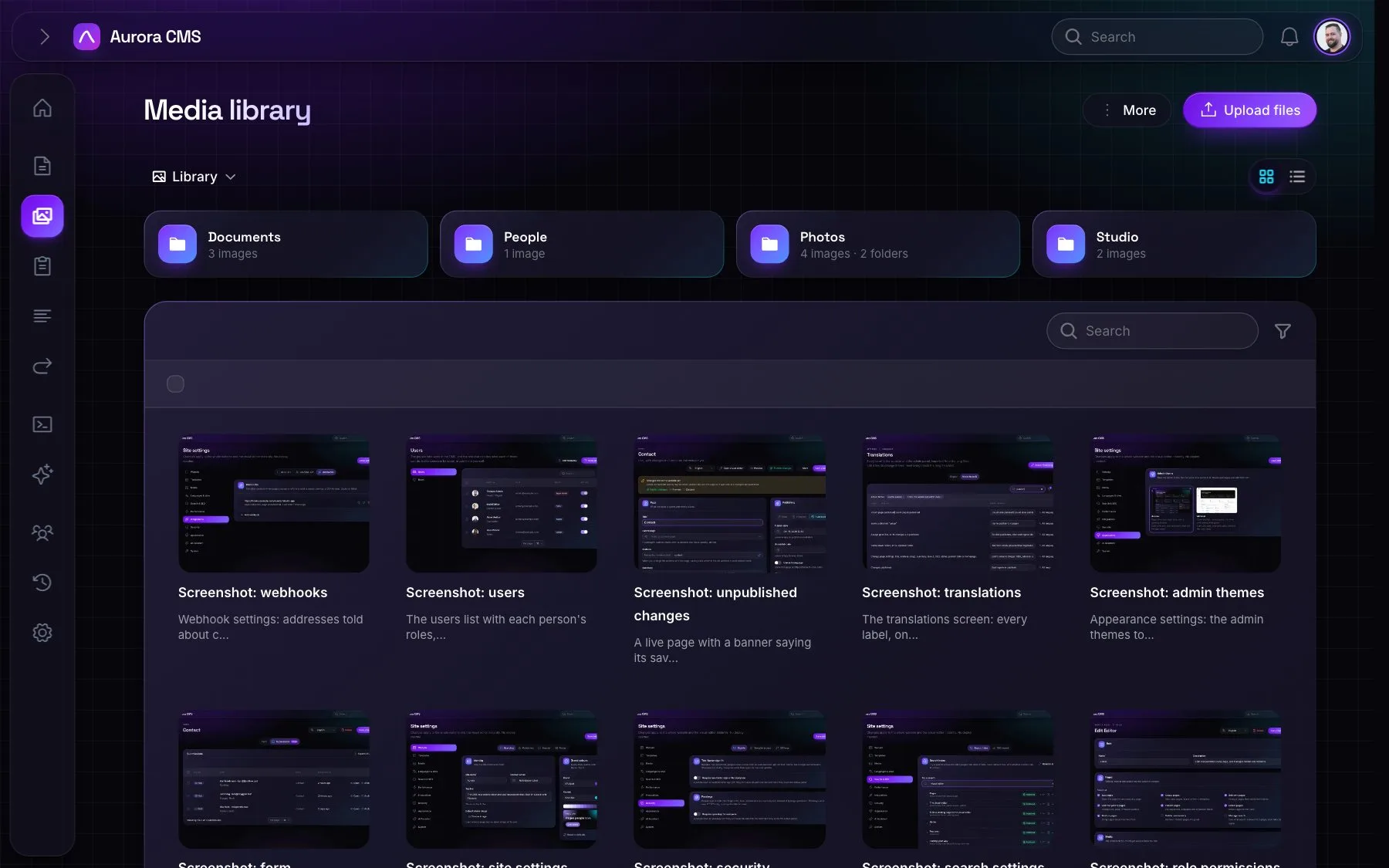
One library shared by every site, organised like a file manager.
Browsing and uploading
- Folders and breadcrumbs, with the open folder kept in the address so it can be bookmarked. A grid of cards or a list of rows. Search and tags look across every folder.
- Folders: create, rename, move and delete them; deleting moves the contents up a level. Drag files and folders onto folders or breadcrumbs.
- Uploading: a dialog, or drag and drop from the desktop, with progress per file. Images, video, audio, PDF, Office documents, text and archives, up to 10 MB per image and 50 MB per other file. Scripts, HTML and executables are refused.
- Tags: coloured tags shown as dots, created on the spot. Filters: type, tags, used or unused, and with or without alt text.
- Bulk actions: move, access and delete. Everything is also on the right-click menu.
A file's page
- A preview with a focal point to click, which cropped sizes keep in view.
- Title, alt text and caption per language, and credit. Write with AI looks at the image to write the alt text, and the assistant can write it for every new image by itself.
- Folder and tags, file details and a download, EXIF data for images and ID3 tags for audio.
- Replace file: the file keeps its id, so every page, link and redirect that uses it keeps working.
- Used on: every page and redirect that uses the file, tracked automatically.
- Formats: every size made from an image with its status, regenerate one size or all, and each block's own edited version.
- Access: limit a file or folder to roles or people, with read or read and write access. This only narrows the admin; files still show wherever pages use them.
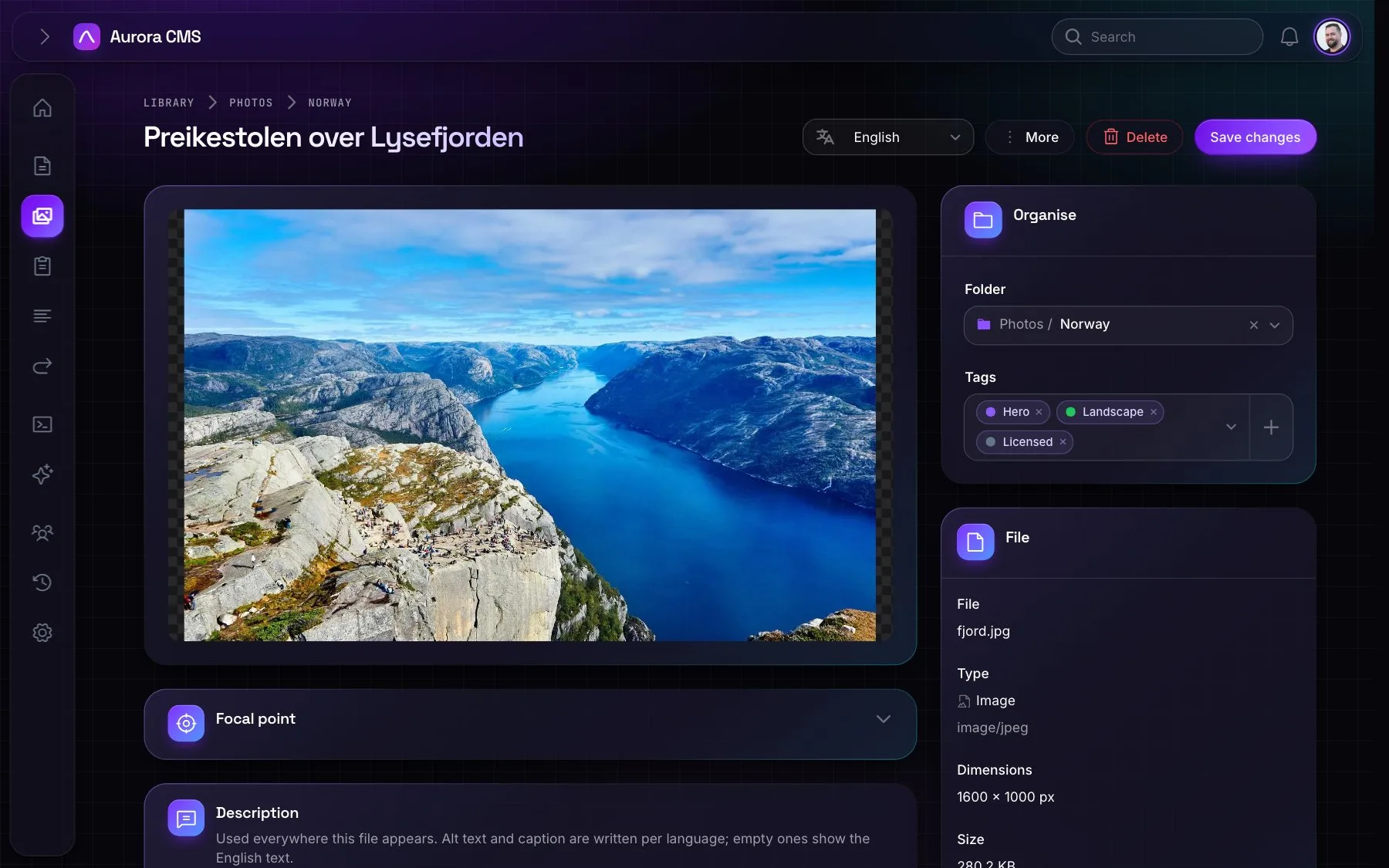
Image formats
Under Settings › Media: name, handle, width, height, WebP, AVIF, JPEG or PNG, quality, and whether a format is part of responsive srcsets. Changing a format brings existing images up to date in the background. Small, medium, large, thumbnail and share image come built in.
In templates
Every file has a lasting address, /files/{id}, even after it's replaced. In Blade, show an image with its responsive sizes, the block's crop and the focal point:
Blade
<x-aurora::media :value="$data['image'] ?? null" size="md" sizes="(min-width: 1024px) 50vw, 100vw" />Or get one size's address with AssetLibrary::url($value, 'md'). The media disk comes from Spatie Media Library (media-library.disk_name); local and S3 both work.