Using the admin
Forms
Forms with conditional fields, and what to do with the answers.
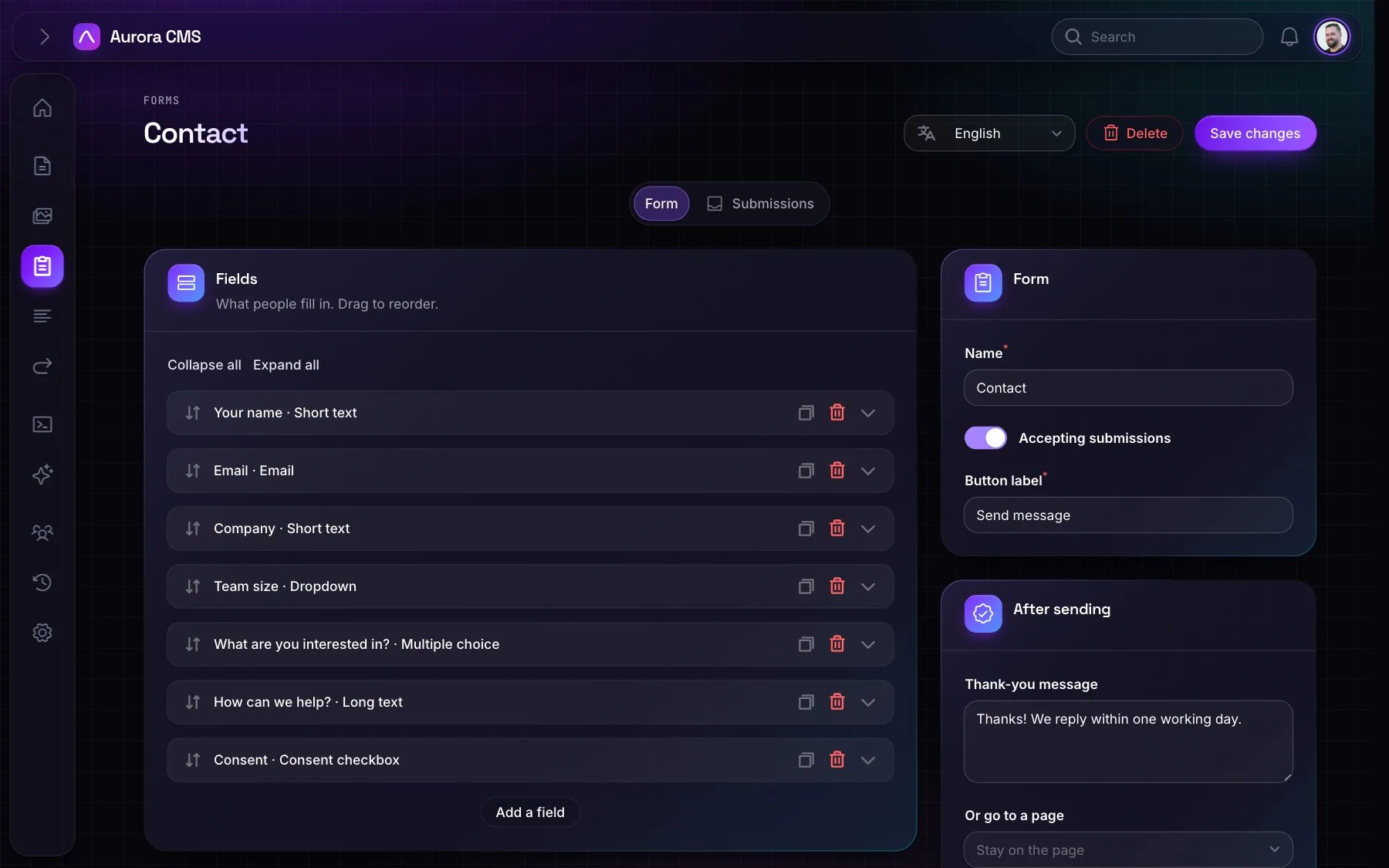
Building a form
- Field types: short text, email, phone, long text, dropdown, single choice, multiple choice, date, file upload (with allowed types and a size limit) and a consent checkbox. Each field has a label, key, placeholder, help text, required and width.
- Conditional fields: Show only when another field has a given answer. Hidden fields aren't required, checked or stored.
- Translations: every field's text in each language, with one-click AI translation.
- Settings: whether the form accepts answers, the button label, a thank-you message or a page to go to afterwards, and email addresses to notify.
Submissions
- Statuses New, Read, Archived and Spam; reply by email; bulk status changes; export to CSV.
- Uploaded files are served through signed links.
- The sidebar badge counts new submissions, and everyone who handles forms is notified.

Spam protection
A honeypot field, a minimum fill time and a rate limit. Spam is kept, marked as spam, and sends no notifications.
On the website
Place a form with the Form block. Submissions work without JavaScript: they're a plain POST to /forms/{form} with server-side validation, and messages and old input come back to the page. Conditional fields are shown and hidden in the browser and checked again on the server. Deleting a form warns which live pages use it.
To send submissions anywhere else, listen for Aurora\Events\FormSubmitted or add a webhook.