Guide
Let Claude draft a page for you
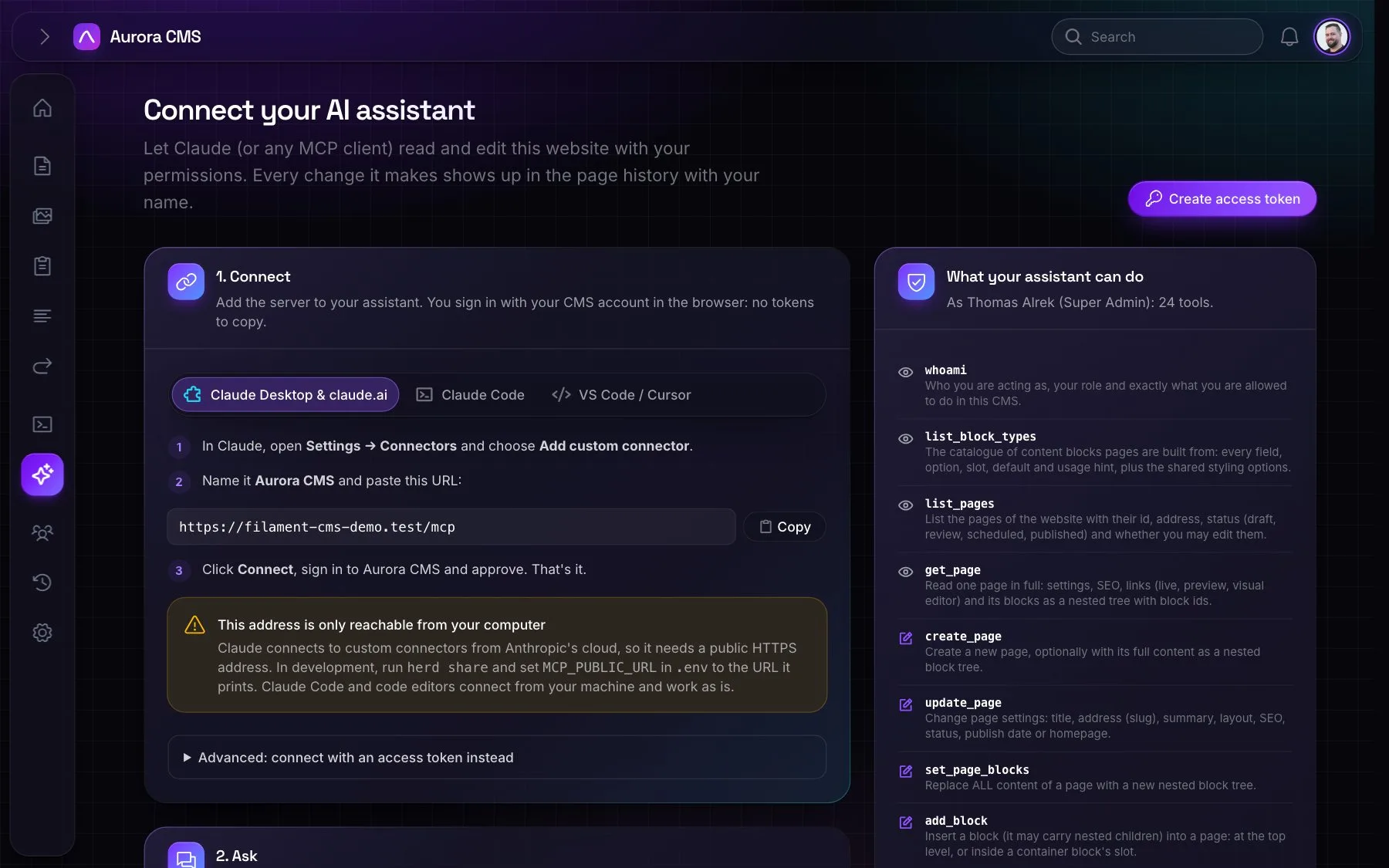
Connect Claude to Aurora over MCP and ask it for a first draft. It works as you, with your permissions, and everything it does is a revision you can undo.
1. Connect
Open AI › Connect AI apps in the admin. It has the steps for Claude Desktop and claude.ai (a custom connector), Claude Code, VS Code and Cursor, with the address to copy. In Claude, add a custom connector with that address; Claude opens Aurora's sign-in, you sign in and approve.
https://your-site.example/mcp2. Ask for a draft
Be specific about the audience, the sections you want and the tone. Claude reads the block catalogue first (list_block_types), so it knows what it can build with and how each block is meant to be used.
“Draft a landing page for our spring webinar series: a hero, three cards for the sessions, a short FAQ and a call to action to sign up. Keep it as a draft.”
You
in Claude
3. Review it in the editor
Open the page in the visual editor. Claude's changes are in the page's history under your name, marked as MCP, and every tool call is in AI › Activity log. Adjust anything, then publish. If you are an Author, Claude can only send it for review, just like you.
More guides

8 October 2026
Build a landing page in the visual editor
From an empty canvas to a published campaign page, step by step.
Read the guide
10 October 2026
Add your own block
Make a block with one command: a PHP class, a Blade view and the helpers that render it.
Read the guide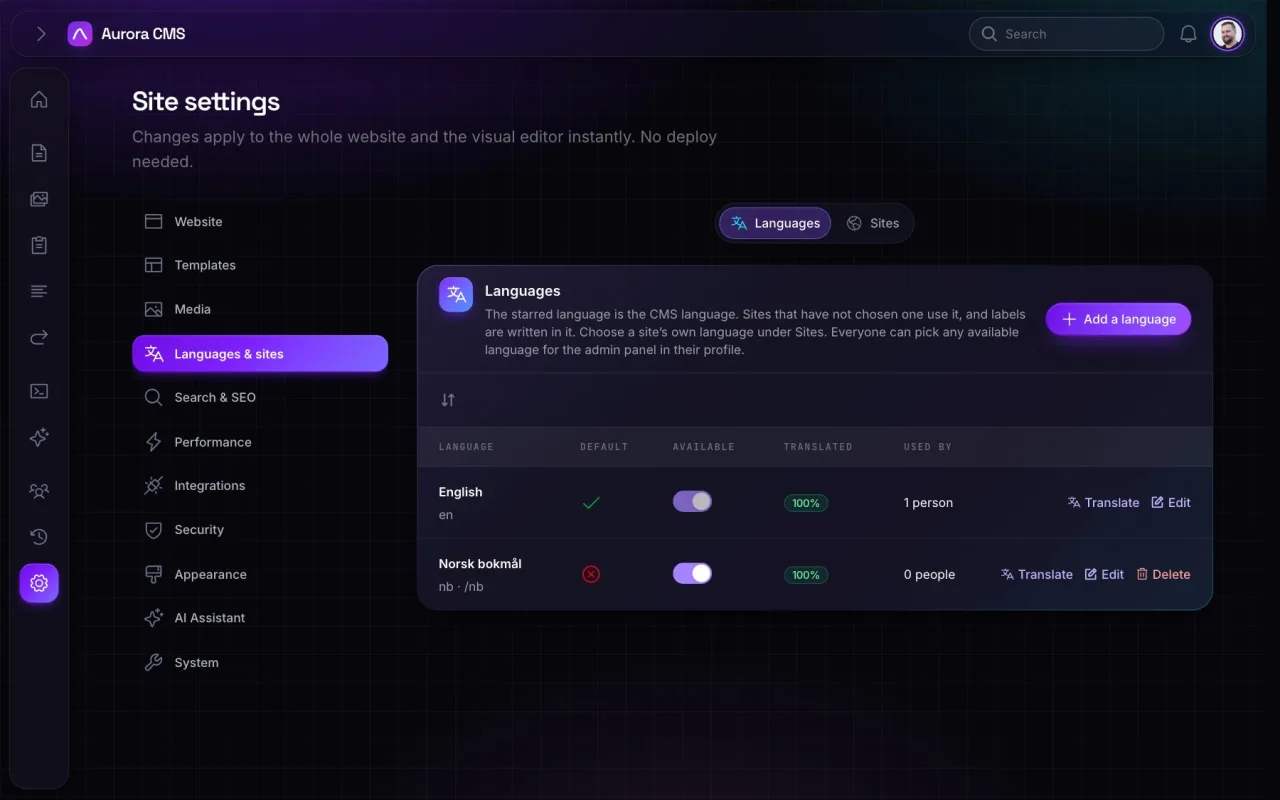
11 October 2026
Run several websites from one admin
Domains, languages and people for more than one website.
Read the guide