Guide
Add your own block

A quote with a photo of the person who said it: a small block that shows the whole pattern. You'll make the class and the view, and Aurora does the rest.
1. Make it
$ php artisan aurora:make-block "Quote with photo" --category=content --icon=phosphor-quotesThat creates app/Blocks/QuoteWithPhotoBlock.php and resources/views/components/blocks/quote-with-photo.blade.php. Blocks in app/Blocks are registered automatically: it's already in the palette.
2. Its fields
public static function schema(): array
{
    return [
        Textarea::make('quote')->label(__('Quote'))->rows(3),
        TextInput::make('name')->label(__('Name')),
        AssetPicker::make('photo')->label(__('Photo')),
    ];
}

public static function editables(): array
{
    return [
        'quote' => Editable::text()->multiline(),
        'name' => Editable::text()->placeholder(__('Name')),
    ];
}
3. Its view
Render the fields with the helpers: no @php use imports needed.
@props(['data' => []])

<figure class="flex items-center gap-6">
    <x-aurora::media :value="$data['photo'] ?? null" size="sm" class="size-20 rounded-full object-cover" />
    <blockquote>
        <p class="text-xl" @editable('quote')>{{ plain_text($data['quote'] ?? '') }}</p>
        @shows('name', $data['name'] ?? null)
            <cite @editable('name')>{{ plain_text($data['name'] ?? '') }}</cite>
        @endshows
    </blockquote>
</figure>
4. Use it
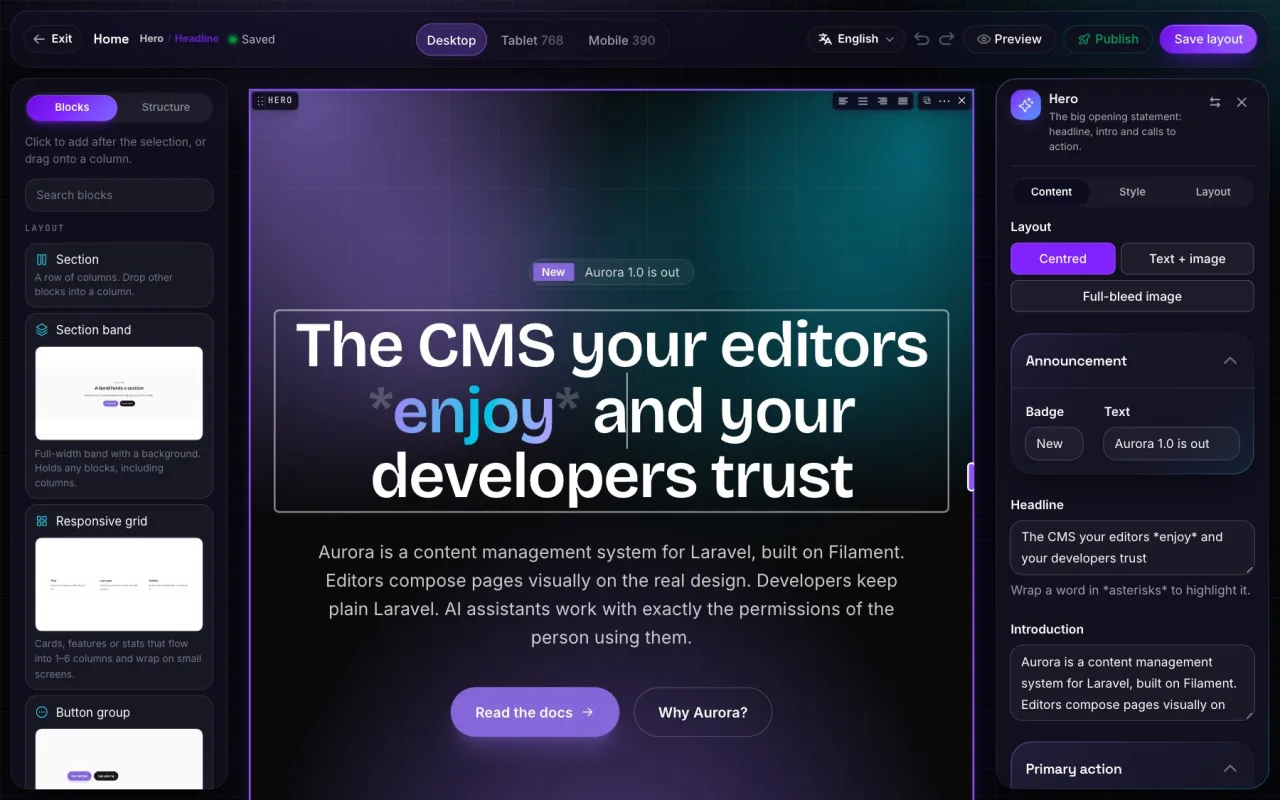
Open any page in the visual editor and drag it in. The canvas shows it in your website's own CSS. It's also validated when AI tools write it, described to assistants, translated, indexed for search and served by the APIs, with nothing more to do.
More guides
8 October 2026
Build a landing page in the visual editor
From an empty canvas to a published campaign page, step by step.
Read the guide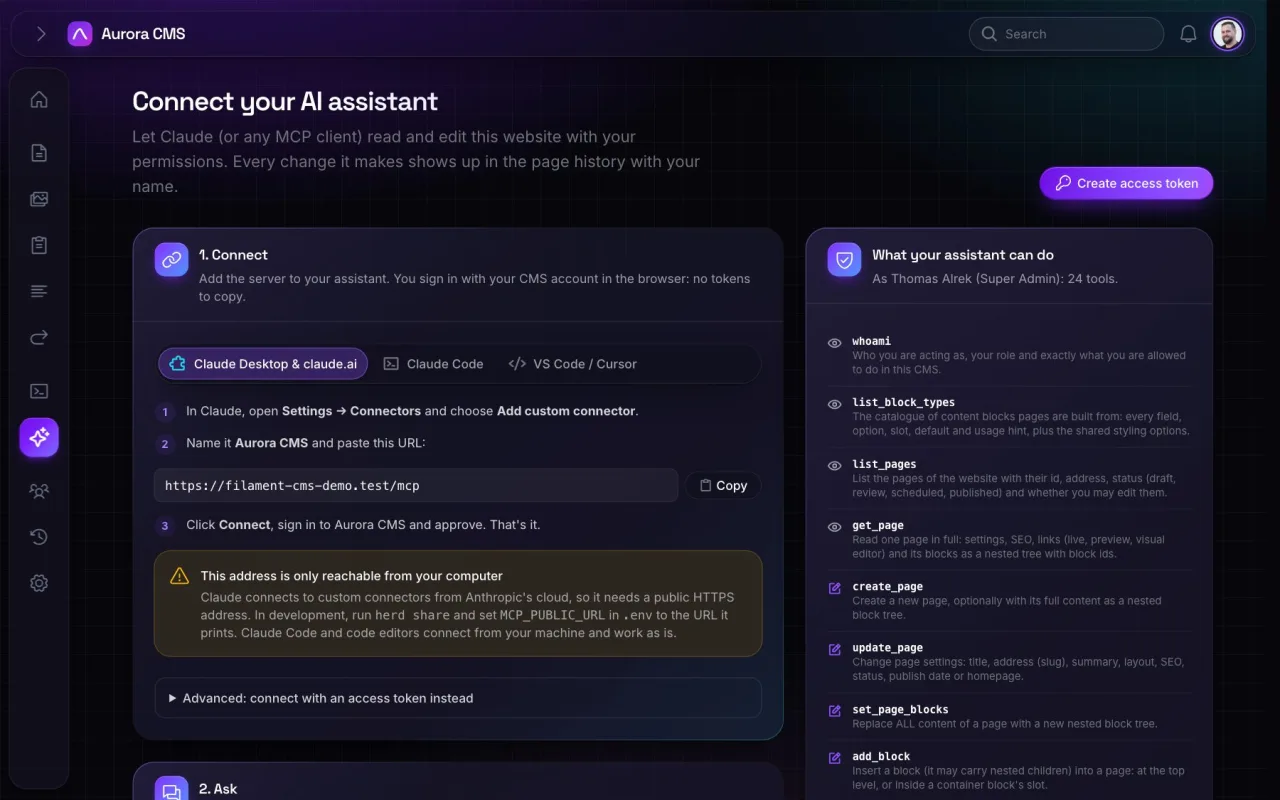
9 October 2026
Let Claude draft a page for you
Connect Claude over MCP and ask it for a first draft you can refine.
Read the guide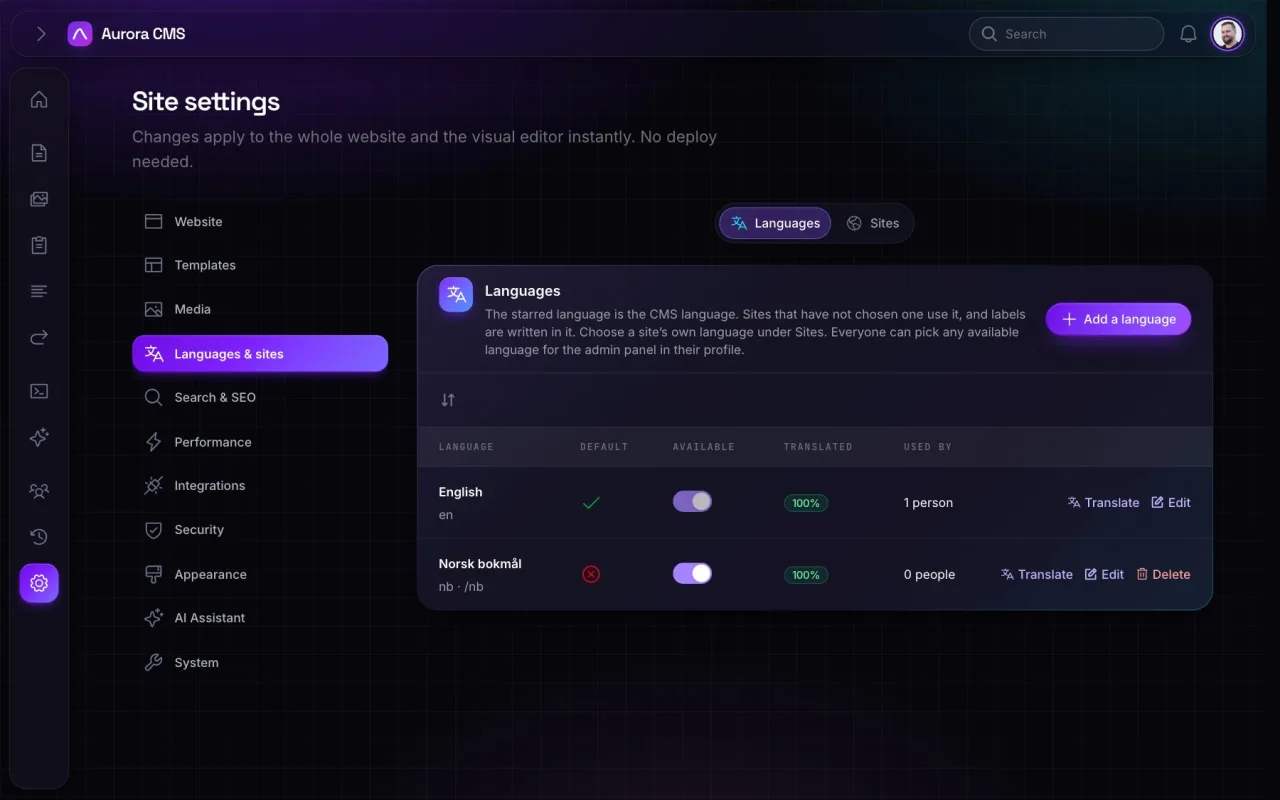
11 October 2026
Run several websites from one admin
Domains, languages and people for more than one website.
Read the guide